Tutorial & Examples
Loading...
For Linux and Mac user, skip to the third bullet. For Windows user, choose between MobaXterm or Cygwin/X
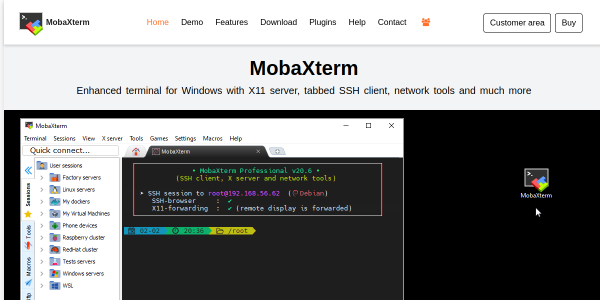

MobaXterm is a toolbox for remote computing for Windows. It provides important packages: remote networking tools and Unix commands.
Cygwin/X is a Linux-like environment for Windows. It contains thousands of packages from Open Source including GNU tools, an X server and X applications. Cygwin/X comes with small necessary packages. If you need more packages for your work, you can re-install it and select the desired packages. However, for purpose of using (to access the remote desktop) and simplicity, we recommend using MobaXterm.
It is simple! Download the setup file from the MobaXterm's website, and run it. After installation completed, open MobaXterm and click Start local terminal.
You may download it from Cygwin's website. Download setup-x86.exe, if you are using 32-bit OS and setup-x64.exe if you are using 64-bit.
If you don't know which system type of windows you are using, right-click at This Computer or My Computer → properties and look at System Type.
Run the setup program, choose Install from Internet. Then choose between All Users or Just Me.
Next and next and choose internet connection types as Direct Connection. Then choose the packages download server.
Note: Choose the closest server, for Thailand we choose one with the suffix .sg (Singapore).
You can use search box to search for the package without pressing ENTER (it would take few seconds to filtered out and show you results). Choose xorg-server and xinit and ensure that inetutils and openssh packages are selected.
(for edit file, download, etc.) wget, tar, vim, bash-completion, ca-certificates, and curl.
For more information see Cygwin/X installation guide and how to select the packages here.
When the program is installed, open Cygwin Terminal and type startxwin. When the Cygwin/X Server and X application menu appear at your taskbar (it may be hidden at the ^ symbol on your taskbar, click to see them), right-click at X application menu → system tools → terminal.
Once the terminal appears, start Secure Shell to remote SSH with provided IP and port and the flag -X:
The machine will ask for your password, type it and the welcome message will be displayed.
Then connect to the head node by typing:
Type yes then you are asked for continue connecting and press ENTER.
Try type xeyes or xclock to check whether X Windows can be used. Another window will appear, shows the xeyes or clock. See this tutorials for more details.
We use Multi Scale Initial Condition (MUSIC) to generate initial conditions. MUSIC supports both Zel'dovich approximation (first order) and second order (2LPT) Lagrangian perturbation theory.
Luckily, we have installed MUSIC for you which can be used by loading it from modulefile.
Edit your parameter file, fill in some missing parameters.
Tip: When you edit a file, it is useful to copy the original file for backup, i.e. cp ics.conf ics.conf.bak.
When you are ready, run MUSIC with your parameter file.
The initial condition file for Gadget-2, ics_gadget.dat, will be generated. Note that an output name can be changed in a configuration (.conf) file.
We provide just simple configuration to ensure that Gadget-2 can be run with default MPI compiler (rocks-openmpi) and without HDF5 support. If you need these, the methods are described in additional configurations below.
In the terminal, download Gadget-2.0.7 by typing:
Use this command to unpack the files:
Go to ./Gadget-2.0.7/Gadget2 and open Makefile with text editor (whatever you prefer). Comment these lines by adding #:
Save & exit.
Add SYSTYPE and the directories for required include files and libraries. For our system, we use:
Save & exit.
To produce executable for Gadget-2, type:
Then:
Edit galaxy.param, the first two lines:
Save & exit.
To run your Gadget2, basically we type: (Note: The flag -np 2 specifies the number of processors required to run Gadget).
However, for using computing nodes efficiently, here we write a shell script file to send our work to run.
Firstly, create an empty file:
Then open the file with an editor and type:
Save & exit. For more information about these flags see how to submit a job using qsub.
Now send your work to computing node using qsub:
The output will be generated in your output directory.
We recommend you to read Nathan Goldbaum's article on astrobites for the details. When you are ready, obtain initial condition to your working directory:
Go to your Gadget2 directory. Open Makefile with an editor. Then COMMENT these lines (add #):
And REMOVE comment from these lines (remove #):
Save & exit.
Then type:
This will produce a new executable Gadget2.
Copy your new Gadget2 executable and jobscript file from previous section to 15 and navigate to this directory and edit jobscript.sh.
Gadget2 will generate many snapshot files like these:
To open this file, it requires SPH visualization suite. Here we use Gadget Viewer.
To open snapshot files, it is required a SPH visualization suite. See SPH visualization suites.
Edit Makefile by uncommenting the line OPT += -DHAVE_HDF5 and add path to HDF5INCL and HDF5LIB:
Then re-compile executable Gadget-2 by typing make clean and make. Copy the executable file to your working directory like normal Gadget-2 file. To force Gadget-2 to produced HDF5 snapshot, open parameter file (.param) and change SnapFormat to 3. If you want Gadget-2 to read HDF5 initial condition file change ICFormat to 3.
Note: Gadget-2 is old, it supports HDF5 up to version 1.6.x.
If you want to change MPI library to another one, first, you have to unload currently used modulefile and load the new one. After that, open Makefile, delete path to MPICHLIB and add new path for mpicc at CC. For example, we want to use openmpi:
Then re-compile as usual by typing make clean and make.